
CX Direct Allocation
Our 2026.5 release of topbox adds several new features to our Courier Exchange integration. The main new feature is the ability to allocate bookings directly to a specific driver on Courier Exchange.
This new feature brings some changes to the Driver Allocation window which are described below.
Driver Allocation window overview
The Driver Allocation window now has two tabs, one for regular topbox drivers, and one for Courier Exchange.
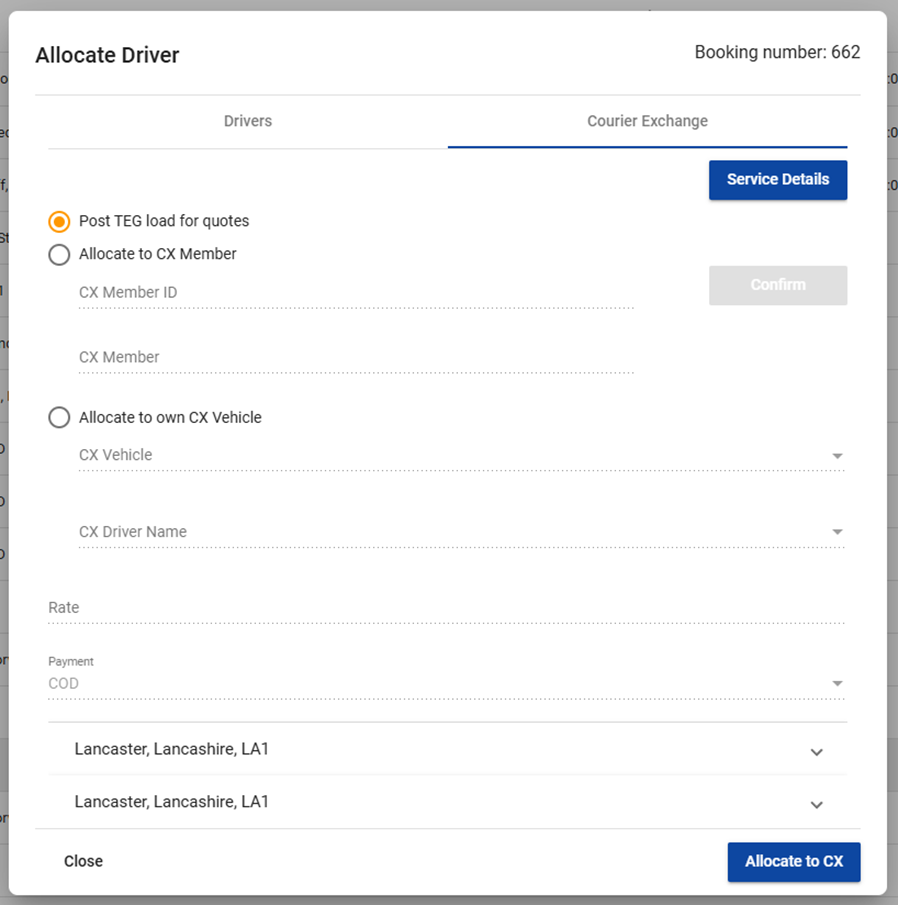
If you wish to allocate to a regular topbox driver, just enter their name or callsign as usual and press “Allocate Driver”.
If you wish to send the booking to CX, click the Courier Exchange tab.
The Courier Exchange tab gives you the ability to post a booking to CX for quotes, allocate directly to a specific CX member, or allocate to one of your own vehicles and drivers on CX.
Additionally, the Courier Exchange tab shows you the addresses that will be sent to CX. If any of the addresses are missing data that CX require, such as a Street Number or Building Name, this will be highlighted and you will be required to add the necessary address information before you can send the booking to CX.
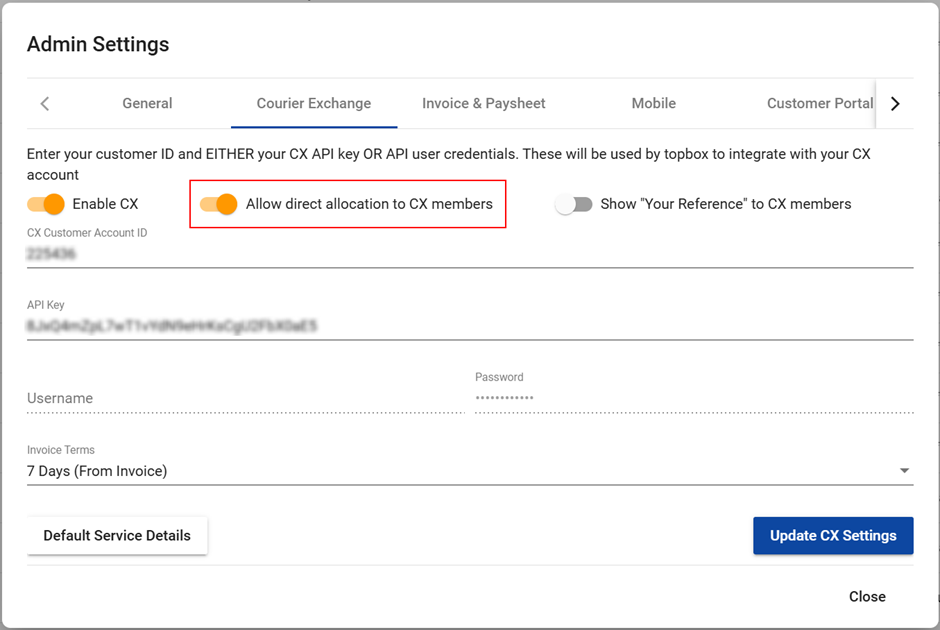
Note that in order to allocate directly to a specific CX member or allocate to your own vehicle, this option must be turned on in your admin settings. Your topbox administrator can enable this using the option indicated below:
Posting bookings for quotes
If you wish to post the booking to Courier Exchange and receive bids from members, leave the option set to “Post TEG load for quotes” and press the “Allocate to CX” button. The rest of the process for reviewing and accepting quotes is the same as you have used previously.
Allocating to a specific CX Member
If you wish to allocate the booking to a specific Courier Exchange member, simply click the “Allocate to CX Member” option, enter their CX Member ID and click the “Confirm” button. If the Member ID is valid, the Member Name will automatically appear.
After you have chosen the CX Member, enter the agreed rate and payment terms, and finally click the “Allocate to CX” button. The CX Member will be sent the booking and topbox will automatically be updated as the member progresses it.
Allocating to one of your own CX vehicles and drivers
If you wish to allocate to one of your own vehicles on the Courier Exchange platform, click the “Allocate to own CX Vehicle” option, and choose your vehicle. You can optionally also choose a specific driver for that vehicle.
After you have chosen the CX Vehicle, enter the agreed rate and payment terms, and finally click the “Allocate to CX” button. As the booking is progressed on CX, topbox will automatically be updated.